
tmux usage
by 권 진영 (gc757489@gmail.com)
tmux
- 기존의 터미널 창을 분할해 사용할 수 있는 터미널 멀티플렉서입니다
tmux 설치
- yum install tmux
tmux 계층
Sessions - 하나 이상의 윈도우가 있는 독립된 작업 공간 입니다.

Windows - 동일한 세션에서 시각적으로 분리된 부분입니다. (브라우저의 탭을 생각하면 이해하기 쉽습니다.) Panes - 동일한 윈도우 내에서 분리된 부분입니다.
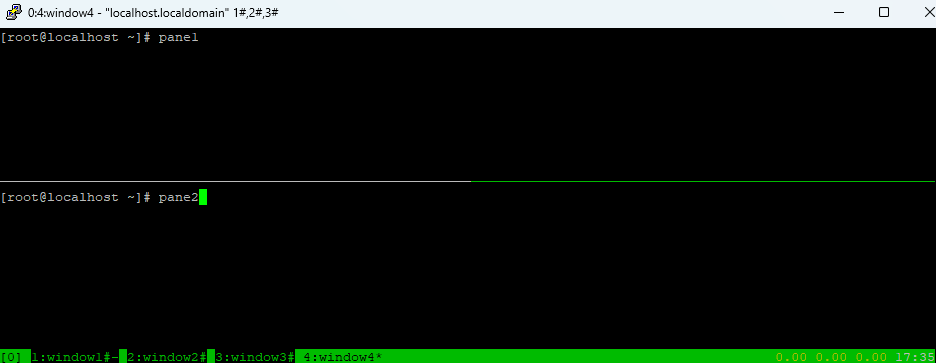
tmux 실행
tmux: 새로운 세션 시작 (순차적인 숫자의 이름으로 tmux 세션이 만들어 집니다.)- 0,1,2,3…
tmux new -s name: name이라는 이름의 tmux 세션 시작
tmux 명령어 정리
- Session
tmux ls: 현재 세션 목록 나열- (tmux 실행 중)
ctrl+b -> d를 누르고 현재 세션에서 빠져나오기 tmux a: 마지막 세션으로 들어가기tmux a -t 세션 이름: 특정 세션으로 들어가기
- Window
ctrl+b -> c: 새로운 윈도우 생성ctrl+d: 윈도우 닫기 (마지막 윈도우일 경우 세션 종료)ctrl+b -> p: 이전 윈도우로 이동ctrl+b -> n: 다음 윈도우로 이동ctrl+b -> 숫자: 해당 숫자의 윈도우로 이동ctrl+b -> ,: 현재 윈도우 이름 바꾸기ctrl+b -> w: 현재 윈도우 목록 나열
- Pane
ctrl+b -> ": 현재 Pane을 가로로 나누기ctrl+b -> %: 현재 Pane을 세로로 나누기ctrl+b -> 방향키: 방향키 방향의 Pane으로 이동ctrl+b -> z: 현재 Pane을 확대/축소 전환ctrl+b -> [: space를 누르면 선택을 시작하고 enter를 누르면 선택 내용이 복사ctrl+b -> space: Pane 배열을 변경
- tmux Command Line
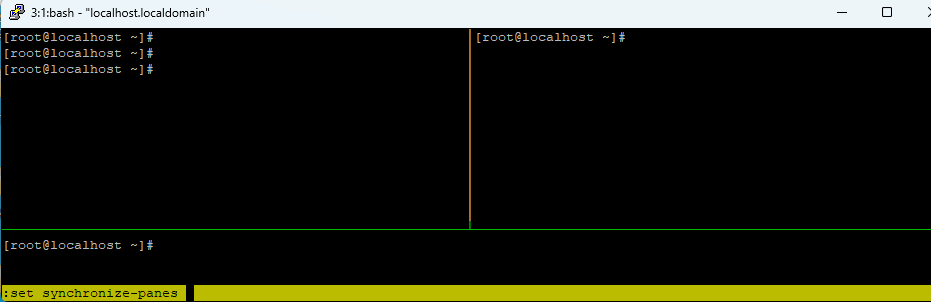
ctrl+b -> :: 명령줄 모드 진입set synchronize-panes: 모든 Pane에 똑같은 타이핑 입력 (on/off 전환)set synchronize-panes on: 모든 Pane에 똑같은 타이핑 입력 ONset synchronize-panes off: 모든 Pane에 똑같은 타이핑 입력 OFF
resize-pane -L 20: 현재 Pane을 왼쪽으로 20cells 만큼 늘리기resize-pane -R 20: 현재 Pane을 오른쪽으로 20cells 만큼 늘리기resize-pane -D 20: 현재 Pane을 아래쪽으로 20cells 만큼 늘리기resize-pane -U 20: 현재 Pane을 위쪽으로 20cells 만큼 늘리기
# M- is alt
# C- is Ctrl
# S- is shift

unbind C-b
set -g prefix C-q
bind-key C-q send-prefix

# 0 is too far from ` ;)
set -g base-index 1

# Automatically set window title
set-window-option -g automatic-rename on
set-option -g set-titles on

#set -g default-terminal screen-256color
set -g status-keys vi
set -g history-limit 100000

setw -g mode-keys vi
#setw -g mode-mouse on
setw -g monitor-activity on

bind y set-window-option synchronize-panes

bind-key v split-window -h
bind-key s split-window -v

bind-key J resize-pane -D 5
bind-key K resize-pane -U 5
bind-key H resize-pane -L 5
bind-key L resize-pane -R 5

#bind-key M-Down resize-pane -D 5
#bind-key M-Up resize-pane -U 5
#bind-key M-Left resize-pane -L 5
#bind-key M-Right resize-pane -R 5

bind-key M-j resize-pane -D
bind-key M-k resize-pane -U
bind-key M-h resize-pane -L
bind-key M-l resize-pane -R

# Vim style pane selection
bind h select-pane -L
bind j select-pane -D
bind k select-pane -U
bind l select-pane -R

# Use Alt-vim keys without prefix key to switch panes
bind -n M-h select-pane -L
bind -n M-j select-pane -D
bind -n M-k select-pane -U
bind -n M-l select-pane -R

# Use Alt-arrow keys without prefix key to switch panes
bind -n M-Left select-pane -L
bind -n M-Right select-pane -R
bind -n M-Up select-pane -U
bind -n M-Down select-pane -D

# Shift arrow to switch windows
bind -n S-Left  previous-window
bind -n S-Right next-window

# No delay for escape key press
set -sg escape-time 0

# Reload tmux config
bind r source-file ~/.tmux.conf

# THEME
#set -g status-bg black
#set -g status-fg white
#set -g window-status-current-bg white
#set -g window-status-current-fg black
#set -g window-status-current-attr bold
set -g status-interval 60
set -g status-left-length 30
#set -g status-left '#[fg=green](#S) #(whoami)'
set -g status-right '#[fg=yellow]#(cut -d " " -f 1-3 /proc/loadavg)#[default] #[fg=white]%H:%M#[default]'

## Vim Copy
#bind -t vi-copy y copy-pipe "xclip -sel clip -i"
참고
- tmux 기본 명령: https://gist.github.com/LeoHeo/70d191eb629b7e3e3084278e19a73e38
- tmux manual: https://man.openbsd.org/tmux.1
- resize-pane 관련: https://tech.serhatteker.com/post/2022-05/how-to-resize-tmux-panes/